
User manual · Chapter 8
Evidence Capture Types
Capture screenshots, full pages, source, downloads, mail, mobile evidence, video, WHOIS, certificates, and system information.
8.1 Screenshot Capture
Screenshot capture records the visible state of the browser or acquisition interface. It is useful for preserving a specific page, form, message, listing, file download state, account view, or other visual evidence. Procedure:
- Navigate to the target content.
- Confirm the URL and page title are correct.
- Confirm the user agent and routing settings are correct.
- Select Screenshot.
- Wait for Eviquire to save the screenshot.
- Review the evidence entry after capture.
Artifacts typically include:
- PNG screenshot.
- PDF rendering for standard screenshot captures.
- Evidence summary JSON.
- Chain-of-custody events.
- Evidence report after finalization.
- Evidence archive and final evidence ZIP.
Forensic significance: the screenshot shows what the investigator observed at capture time. The associated metadata and hashes document when it was captured and whether the file later changed.
8.1.1 Reviewing a Screenshot from the Case Manager
Once the acquisition has been finalized, return to Case Manager, select the case and acquisition, and click the screenshot record in EVIDENCE CONTAINED IN THE SELECTED ACQUISITION. The right EVIDENCE DETAILS panel provides the evidence ID, type, URL, investigator, comment, exit network information, start/completion times, archive and summary filenames with SHA2-256 hashes, and available blockchain transaction information. A visual Evidence Snapshot appears below these integrity details. Use its zoom controls to inspect the preview. For formal review, inspect the underlying evidence package rather than relying only on the thumbnail.
8.1.2 Choosing a Capture Tool
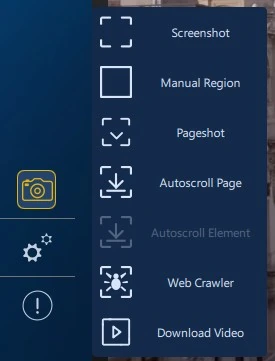
Open the capture menu using the camera icon in the browser. Choose Screenshot for the current viewport, Manual Region for a selected area, Pageshot for a long-page image sequence, or Autoscroll Page for guided full-page traversal. Autoscroll Element targets a suitable scrollable page region, such as a comments panel; the control may be disabled when no eligible region is detected.
Web Crawler is available for crawl-oriented capture tasks. Download Video launches a media-download workflow for supported online sources. The tool used, target URL, and produced artifacts should be checked in the acquisition record. A region screenshot is intentionally narrower than a complete-page capture; provide surrounding context as appropriate.
8.2 Full-Page Capture
Full-page capture, or pageshot, records a page beyond the currently visible viewport. Eviquire can scroll and capture long pages in segments, then create PDF material from pageshots. Procedure:
- Navigate to the target page.
- Wait for content to fully load.
- Expand dynamic sections if required.
- Select Full Page or Pageshot.
- Wait for scrolling and capture to complete.
- Review generated pageshot images and PDF output.
Artifacts may include:
- Multiple Pageshot PNG files.
- A4 PDF pageshot output.
- Page source if combined with source capture.
- Hash list.
- Evidence archive.
- Evidence report. Forensic significance: full-page capture preserves content that may not fit on a single screen. It is useful for long social feeds, terms pages, search results, listings, or long-form articles.
Investigator Tip: Avoid interacting with the page during automatic scrolling. Dynamic content can change while capture is in progress.
8.2.1 Page Shot and Autoscroll Options
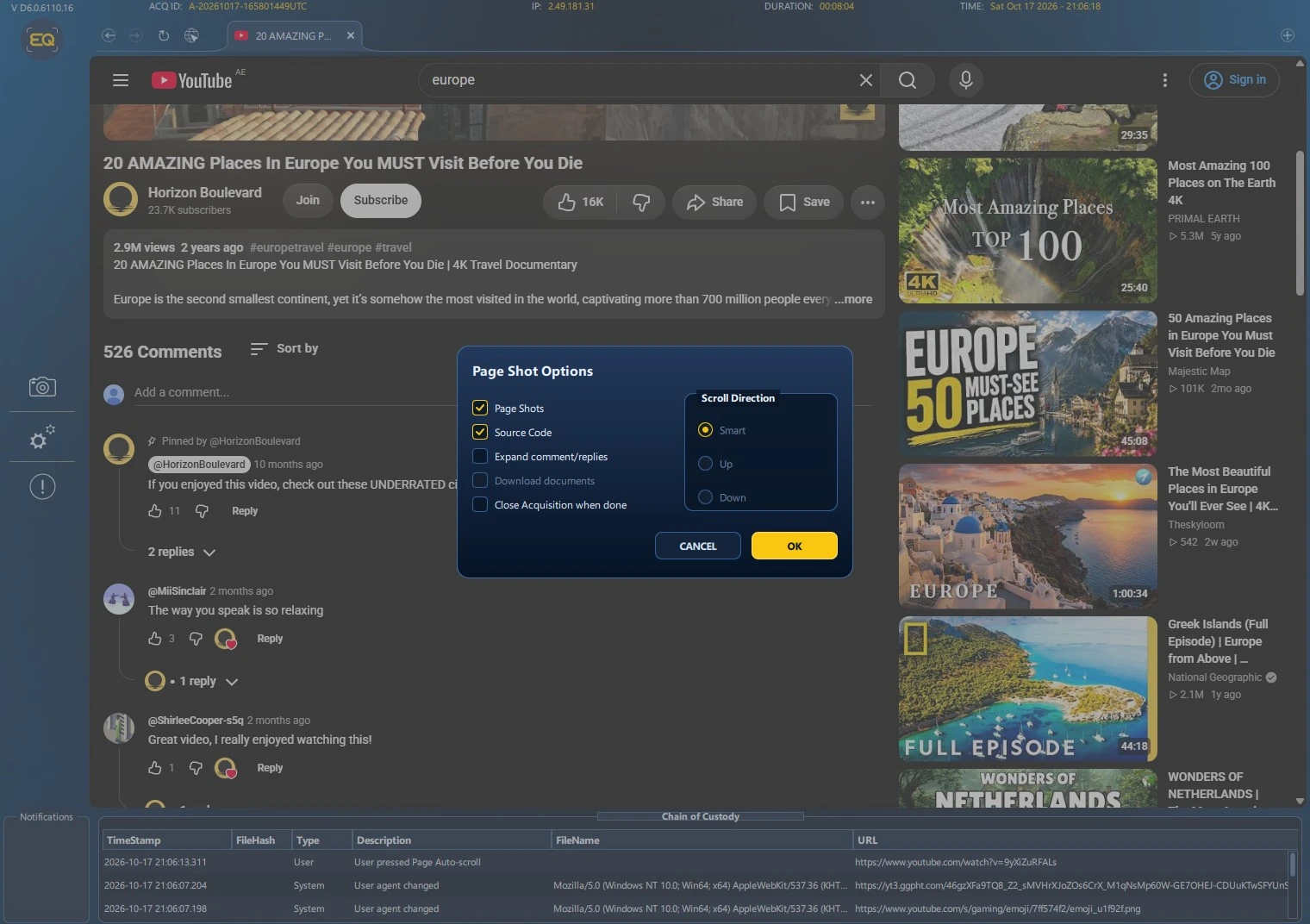
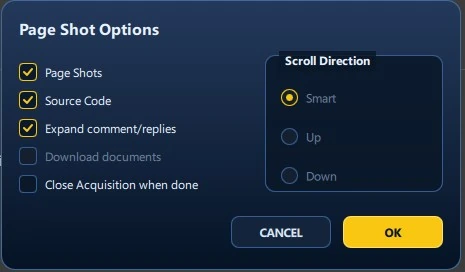
Select Page Shots to preserve visual segments of the scrolling page, and Source Code to preserve associated source material. Expand comment/replies attempts supported comment and nested-reply expansion before and during collection; site layouts may affect the outcome. Download documents is offered where supported and may be disabled for the selected target. Under Scroll Direction, select Smart for automatic directional selection, or Up / Down for a defined traversal direction. Close Acquisition when done can be selected for an operation that should finish the acquisition automatically after capture. Use this only when no other capture tasks remain.
Version 6 freezes the initial screenshot and supported social metadata before scrolling changes the observed page. Scrollable regions are detected passively, and nested or initially non-overflowing comment containers can be eligible for selection. The browser guards against interrupted operations, target changes, and scroll-response timeouts while preserving successfully captured frames.
Evidence interpretation: Comment counts, replies, recommendations, and feeds can change during capture. Treat the source’s behavior and the Chain of Custody as part of the evidence context; automatic expansion does not guarantee exhaustive retrieval of all comments on a changing website.
8.3 Page Source Capture
Page source capture saves HTML or extracted page source text. It provides technical context behind the visual page. Procedure:
- Navigate to the target page.
- Confirm the desired state is loaded.
- Select Page Source.
- Wait for source capture to complete.
- Review the source artifact and summary.
Artifacts may include:
- Page source text file.
- Summary JSON.
- Chain-of-custody event.
- Evidence report.
- Evidence package.
Forensic significance: source capture can show links, metadata, embedded scripts, hidden content, references, and markup not visible in screenshots.
8.4 Combined Visual And Source Capture
Combined capture preserves both what the page looked like and what source or full-page data was available. This is often the strongest web evidence workflow because it combines human-readable visual evidence with technical context. Procedure:
- Navigate to the page.
- Confirm content loaded.
- Select combined visual and source capture or configure full-page capture to include source.
- Wait for screenshots, source extraction, finalization, and packaging.
- Review both visual and source artifacts.
Forensic significance: combined capture reduces the risk that a screenshot alone will be challenged as incomplete or that source alone will be difficult for non-technical reviewers to understand.
8.5 File Download Capture
File download capture records files downloaded during acquisition. A user-initiated download becomes an evidence item. Eviquire can also collect files downloaded as part of another evidence item. Procedure:
- Navigate to the download source.
- Confirm URL, page context, and file identity.
- Initiate the download.
- Allow Eviquire to save the file in the evidence directory.
- Wait for the download event and summary.
- Review the evidence package.
Artifacts may include:
- Downloaded file.
- Screenshot of download context.
- Page source around the download workflow.
- Summary JSON.
- Evidence report.
- Evidence ZIP.
Forensic significance: downloaded files are hashed and linked to the URL and acquisition context. The screenshot helps show the circumstances under which the file was obtained.
8.5.1 Downloading Online Video
The Download Video action shown in the browser capture menu can collect supported online media as an evidence item. Version 6 records richer companion metadata where available, including the video title, description, subtitle information, original filename, and hashes. These metadata fields are included only when available from the observed source and the chosen download workflow.
Wait for the download process and evidence packaging to complete. The notification area and Chain of Custody provide progress and completion context. Video and subtitle files are separate artifacts: preserve both their original bytes and their recorded hashes, and never substitute a converted review copy for original evidence.
8.6 Email Acquisition
Mail acquisition captures email evidence from configured mail accounts or servers. It can preserve message files and mail interface screenshots. Procedure:
- Create a mail acquisition.
- Enter server, port, protocol, user, and password.
- Confirm collection scope.
- Start the acquisition.
- Select or search mail items.
- Capture selected messages.
- Review message evidence and reports.
Artifacts may include:
- .eml files.
- HTML mail renderings where generated.
- Mail screenshots.
- Sender, subject, server ID, and email timestamp in event descriptions.
- Evidence summaries.
- Evidence reports.
- Evidence packages.
Forensic significance: email acquisition preserves message content and server-related identifiers while linking messages to the case and acquisition.
Warning: Mailboxes can contain privileged, private, or out-of-scope messages. Confirm legal scope before acquiring mail evidence.
8.7 Mobile Evidence Acquisition
Mobile acquisition workflows preserve evidence associated with a connected or configured mobile device. Depending on deployment, this may include screenshots, device display capture, or mobile-specific evidence packages. Procedure:
- Connect or select the mobile device.
- Confirm device ID.
- Start a mobile acquisition.
- Capture screenshots or supported artifacts.
- Review mobile evidence packages.
Artifacts may include:
- Mobile screenshots.
- Device video recording where enabled.
- Device ID metadata.
- Evidence summaries.
- Chain-of-custody events.
Forensic significance: mobile acquisition associates evidence with a device identifier and preserves visual state from the mobile source.
8.8 Video Capture
Video capture records the acquisition session or device display. It is primarily a contextual artifact, not a replacement for individual evidence packages. Procedure:
- Enable video recording before starting acquisition.
- Start the acquisition.
- Wait for recording started confirmation.
- Perform capture actions.
- End the session.
- Confirm recording ended and duration was recorded.
Artifacts may include:
- MP4 recording files.
- Video log.
- Video duration metadata.
- Recording start and end chain-of-custody events.
Forensic significance: video helps explain the workflow, user actions, and timing of events.
8.9 WHOIS Capture
WHOIS capture records registration information for a domain involved in web evidence. It is typically collected during web evidence finalization when enabled. Artifacts include:
- WHOIS text file.
- Chain-of-custody event.
- Summary and package inclusion when part of evidence.
Forensic significance: WHOIS can help identify domain registration context, although WHOIS data may be privacy-protected, incomplete, or changed over time.
8.10 Robots.txt Capture
Eviquire can request and save /robots.txt from the target host. Forensic significance: robots.txt can show crawling preferences and site structure hints at capture time. It is not proof of content authenticity, but it provides context about the host.
8.11 Sitemap Capture
Eviquire can request and save /sitemap.xml from the target host. Forensic significance: sitemap data can show declared site structure, important URLs, and update hints. It can assist later analysis of how a page fits within a site.
8.12 Certificates Capture
Certificate capture records trusted root certificate information from the acquisition environment. On Windows this uses the system root certificate store. On Linux it can extract certificate subject and email details from the CA certificate bundle. Forensic significance: certificate data helps document the trust environment used during browsing. This can matter when reviewing HTTPS interception, enterprise trust roots, or certificate-related disputes.
8.13 System Info Capture
System info capture records information about the acquisition workstation. On Windows it uses systeminfo. On Linux it records operating system, kernel, host, CPU, memory, block devices, PCI/USB devices, IP addresses, and disk usage. Forensic significance: system information documents the acquisition environment. It helps explain the tool context and can support repeatability.