
User manual · Chapter 12
Reviewing Evidence and the Acquisition Review Tool
Use the Acquisition Review Tool to examine archives, timelines, evidence, video, screenshots, reports, custody logs, downloads, resources, TLS, and cookies.
12.1 Opening Packages
Review workflows depend on whether you are opening an evidence, acquisition, or case package. General procedure:
- Work on a copy of the package.
- Verify the ZIP hash before extraction.
- Extract to a controlled review folder.
- Locate the summary JSON.
- Locate the PDF report.
- Review chain-of-custody logs.
- Extract raw archives only when needed.
- Preserve original package unchanged.
12.1.1 Using Acquisition Details in the Manager
Select an acquisition row in the middle table. The ACQUISITION DETAILS pane appears on the right; it exposes identifiers, session context, captured artifact integrity data, and a record of the enabled acquisition settings.
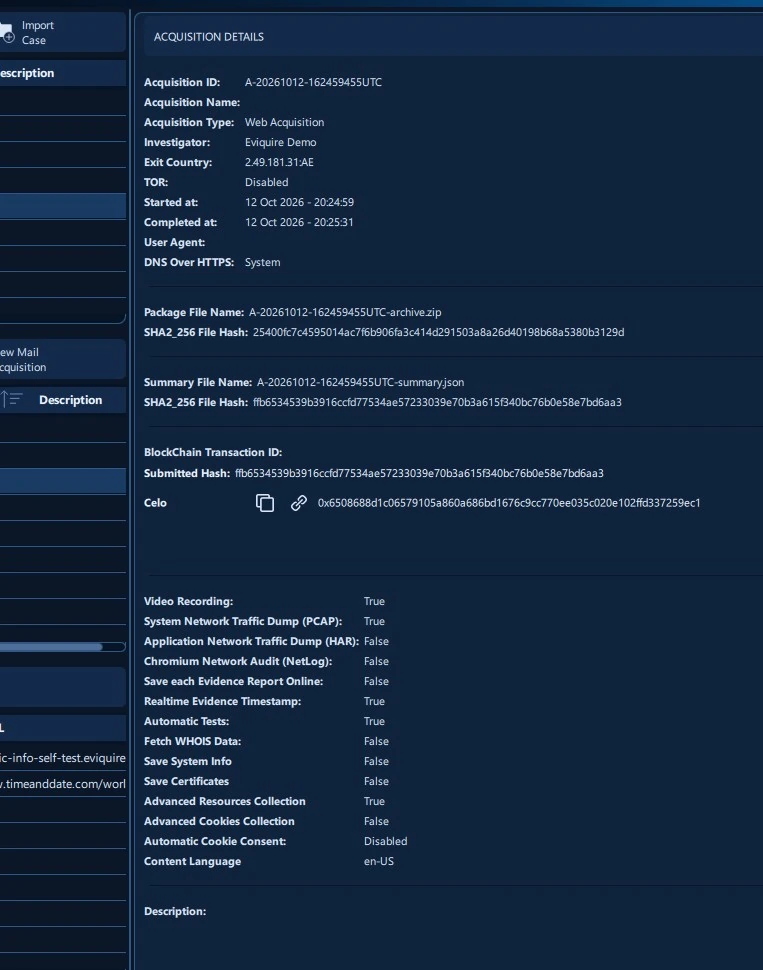
The panel shown includes Acquisition ID, Acquisition Name, Acquisition Type, Investigator, Exit Country/IP, TOR, Started at, Completed at, User Agent, and DNS Over HTTPS. Beneath this, the manager displays Package File Name, SHA2_256 File Hash, Summary File Name, and the summary hash. It also lists the BlockChain Transaction ID information (including Submitted Hash and Celo) and enumerates the session’s options with True/False or named values. Example options visible include Video Recording, PCAP, HAR, NetLog, realtime timestamps, WHOIS, advanced resources, cookie collection, automatic consent, and content language.
This makes the manager useful for confirming that the actual session settings match the procedure used. For technical evidence review, open the reports and package data alongside this summary.
12.1.2 Using Evidence Details in the Manager
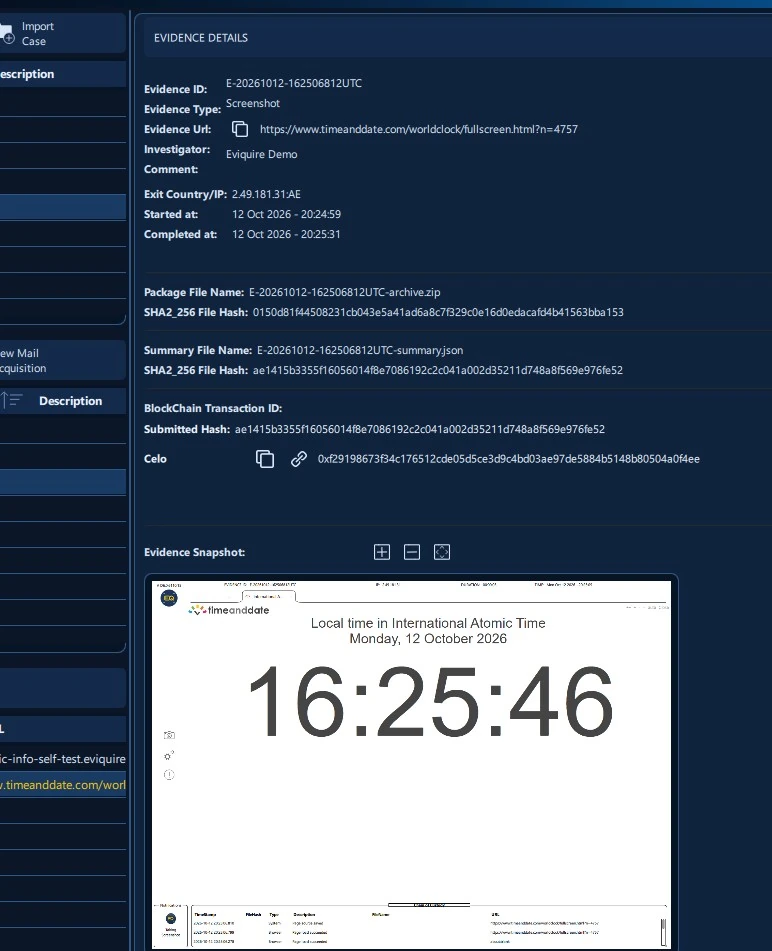
Select an evidence row in the lower table. The right-side panel updates to EVIDENCE DETAILS and displays Evidence ID, Evidence Type, Evidence Url, Investigator, Comment, Exit Country/IP, Started at, and Completed at. It also shows the evidence package name and hash, the summary file name and hash, blockchain anchoring information when present, and Evidence Snapshot. The snapshot toolbar contains zoom and fit-style controls.
The Evidence URL may be long; use the displayed copy icon when available. A preview is for rapid identification. Evidence integrity should be evaluated against the original exported files, their recorded hashes, and the generated report.
12.2 Viewing Screenshots
Screenshots may be viewed directly as PNG files or through PDF reports. When reviewing screenshots:
- Confirm the evidence ID.
- Confirm the URL or device context.
- Confirm timestamp.
- Confirm file hash.
- Confirm screenshot dimensions and visible content.
- Review related page source if available.
If a screenshot is used as an exhibit, include the report and summary hash references.
12.2.1 Evidence Comments and Review Downloads
Evidence comments were introduced in the Version 5 review workflows and are included in acquisition reporting. Use factual, precise comments to document observations and limitations, keeping interpretations separate from the captured content. Version 5 also introduced screenshot download controls in Acquisition Review. Use these tools to obtain working copies for review; maintain the archived original as the evidentiary source.
12.3 Reviewing Page Source
Page source files are text files. Review them with a text editor that does not modify files automatically. Avoid tools that rewrite line endings, reformat HTML, or save metadata. When reviewing source:
- Confirm file hash first.
- Use read-only mode where possible.
- Search for URLs, scripts, metadata, and hidden fields.
- Compare with screenshot where relevant.
- Document any analysis performed.
12.4 Checking Downloads
Downloaded files should be reviewed carefully:
- Verify file hash.
- Confirm download URL.
- Confirm file name and size.
- Scan in a controlled malware-safe environment if needed.
- Do not open suspicious executables on a production workstation.
- Preserve the original downloaded file.
If the download is malware or suspected malware, use isolated forensic malware-handling procedures.
12.5 Reading Logs
Review logs in this order:
- Chain-of-custody text log.
- Chain-of-custody HTML log.
- Acquisition database records if technical review is required.
- Browser net log for web/network issues.
- TShark log for packet capture issues.
- Application debug logs for troubleshooting.
Logs tell the procedural story. Reports summarize it. Hashes verify it.
12.6 Validating Hashes
To validate a file:
- Locate the expected SHA2-256 value in the summary, report, or hash list.
- Compute SHA2-256 of the file using a trusted tool.
- Compare values exactly.
- Record the validation tool, version, date, and result.
If values differ, stop and investigate. Do not continue treating the file as verified until the discrepancy is explained.
12.7 Viewing Metadata
Metadata appears in several places:
- Summary JSON.
- Evidence report JSON.
- Acquisition report JSON.
- Case report JSON.
- Database.
- Hash lists.
- File system timestamps.
Summary JSON is the primary metadata record for package integrity. Reports provide human-readable and structured context. Hash lists provide file-tree-level integrity information.
12.8 Opening the Acquisition Review Tool
The Acquisition Review Tool is the read-only examination workspace for a completed acquisition. It brings together the session package, captured evidence, video, reports, Chain of Custody, downloads, browser resources, cookie events and TLS certificate observations. It is designed to let reviewers follow an acquisition from its recorded environment to the individual artifacts without altering the originals.
- Open Case Manager and select the case containing the acquisition.
- Select the acquisition in the middle ACQUISITIONS CONTAINED IN THE SELECTED CASE table.
- In ACQUISITION DETAILS, use the review/view control (eye icon) to open the Acquisition Review Tool.
- Confirm the Acquisition ID, acquisition time range and user displayed in the header before examining artifacts.
- Choose a top navigation tab. Select items within a tab to display their previews or technical details.
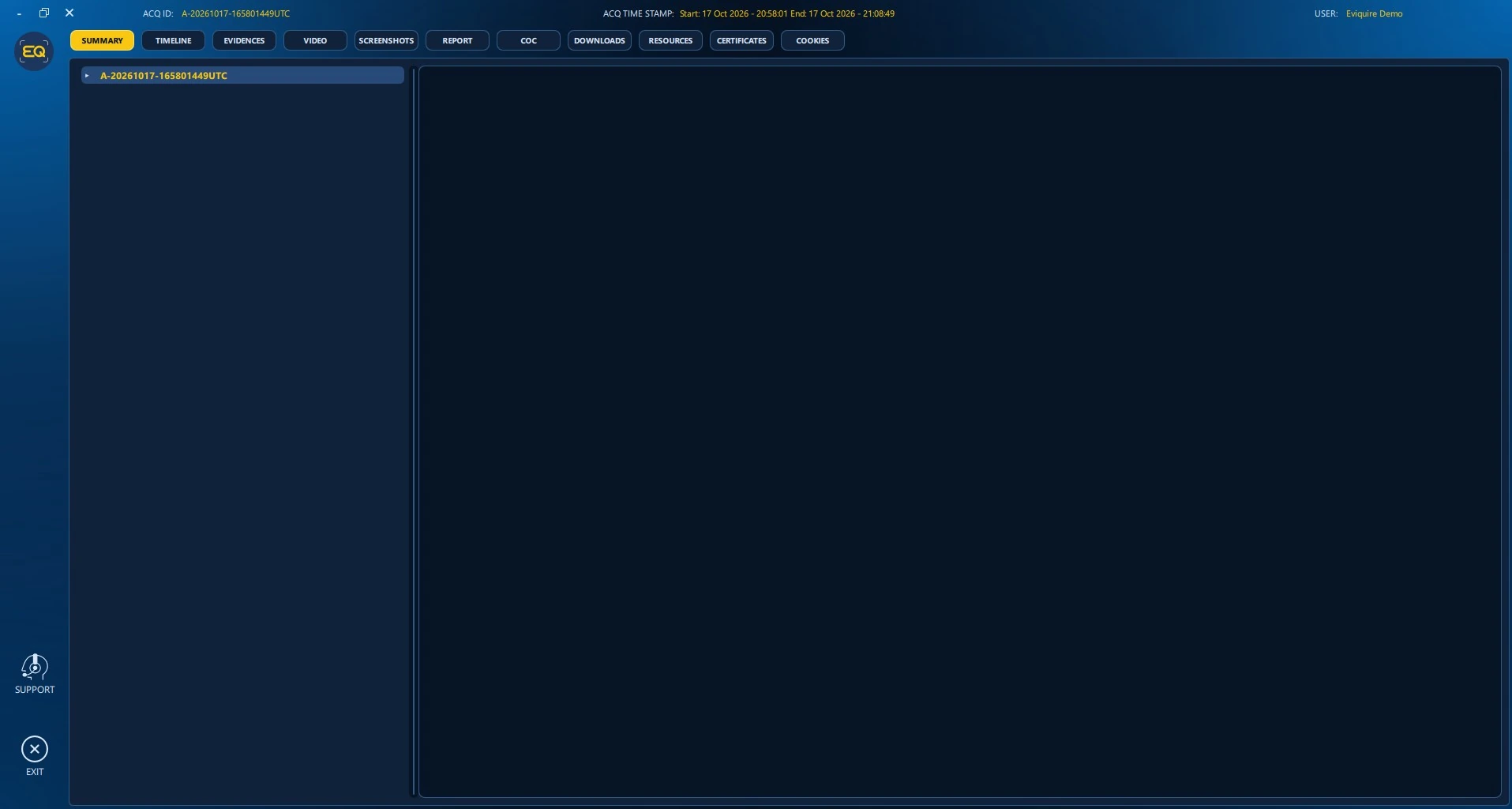
The active tab is highlighted in yellow. The header identifies the acquisition and investigator, and shows its start/end timestamps. The left sidebar provides Support and Exit. Displayed session times may reflect the configured time zone; raw Chain of Custody and timeline event timestamps retain UTC references.
Review principle: A visual preview is a convenience for inspection; the original archived artifact, corresponding file hashes, reports and custody records remain the evidence of record.
12.9 Review Workspace: Tab Reference
The review window provides the following primary areas. The content visible in a specific acquisition depends on the evidence captured and the options enabled during that acquisition.
| Tab | Primary purpose |
|---|---|
| SUMMARY | Browse the acquisition archive file tree and inspect included files. |
| TIMELINE | Explore time-correlated cookie, TLS, evidence and video events. |
| EVIDENCES | Select an evidence item, review its file inventory and preview supported formats. |
| VIDEO | Play the acquisition-session recording when captured. |
| SCREENSHOTS | Browse screenshot, region-shot and pageshot images. |
| REPORT | View the acquisition report PDF. |
| COC | Read the acquisition Chain of Custody as a structured log. |
| DOWNLOADS | Review collected download media and accompanying metadata. |
| RESOURCES | Examine browser resource requests and application HAR data. |
| CERTIFICATES | Review observed TLS certificates and connection context. |
| COOKIES | Review detailed browser cookies and lifecycle events when collected. |
12.10 SUMMARY: Acquisition File Explorer
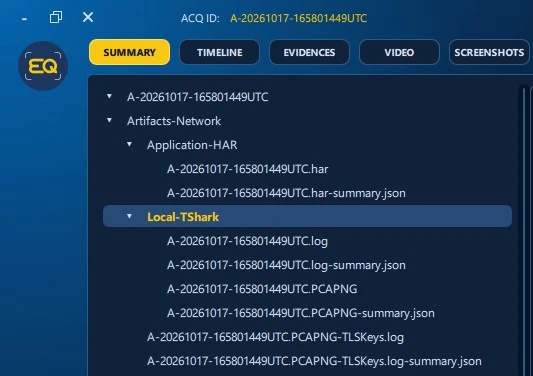
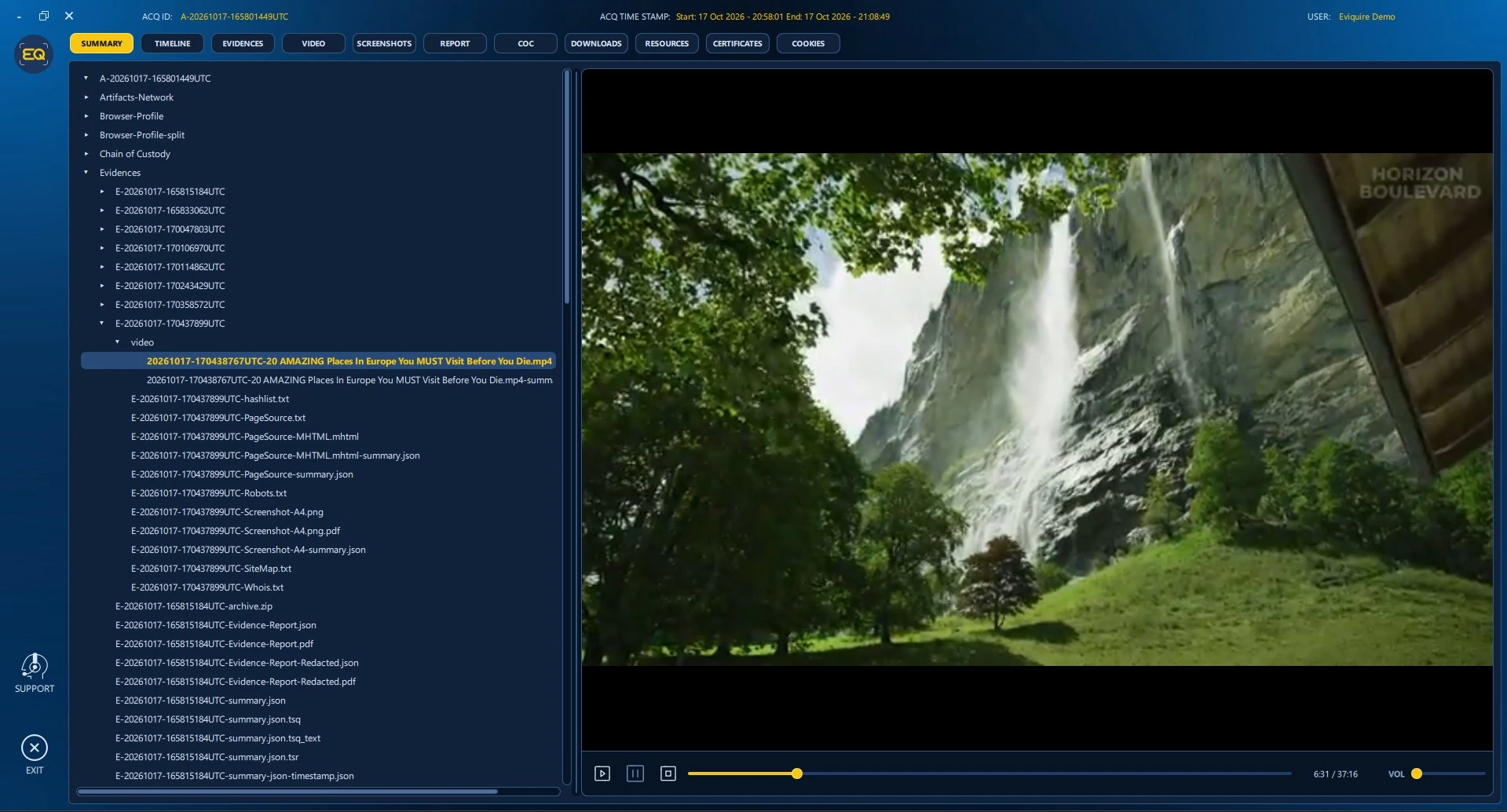
SUMMARY presents an expandable tree rooted at the acquisition ID. Folders and files reflect actual contents of the acquisition archive; a reviewer can expand a folder and select an included file to inspect the supported preview on the right.
The Artifacts-Network branch may contain Application-HAR data (HAR file and companion JSON summaries), Local-TShark captures (PCAPNG, logs and summaries), and a PCAPNG TLS key log when captured. Application HAR is browser-observed HTTP evidence and is distinct from host packet capture. Files should not be inferred to exist merely because a branch is shown in an example screenshot.
The Browser-Profile branch may contain Cache, IndexedDB, Local Storage, Service Worker, Session Storage, Cookies, History, Trust Tokens and other Chromium state. Treat profile files as sensitive session artifacts; they can contain authentication-related data and should be inspected in a controlled environment.
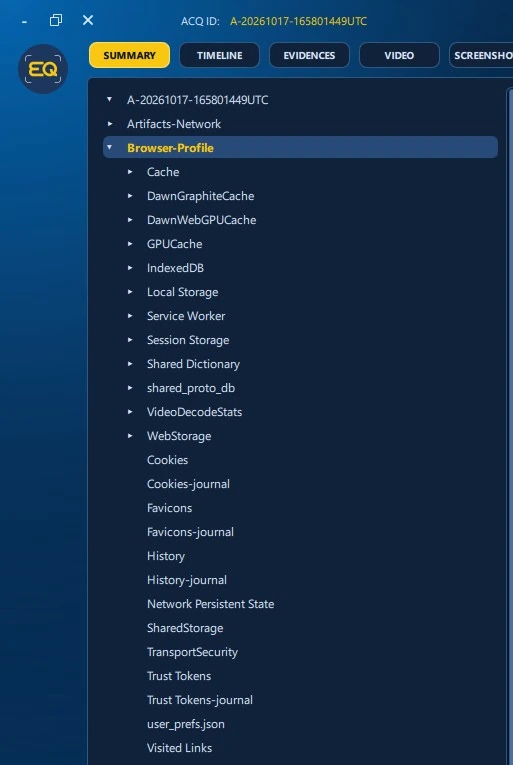
Additional top-level entries can include Browser-Profile-split, Chain of Custody, Evidences, Pages-Source-Code, JSON cookie/TLS observation timelines, certificate and cookie databases, an acquisition database, hash lists, reports, summary JSON, TSA files, video, system information and certificates. Some SQLite and Firebird-related files visible in the archive are application evidence records; use non-destructive tools and review copies if database analysis is required.
12.11 SUMMARY: Reading Archived Files
Selecting a file in SUMMARY opens an appropriate supported preview. This is useful for correlating a report or evidence item with the actual artifact path and for assessing what the archive contains before exporting or conducting independent verification.
12.11.1 Chain of Custody Files in the Archive
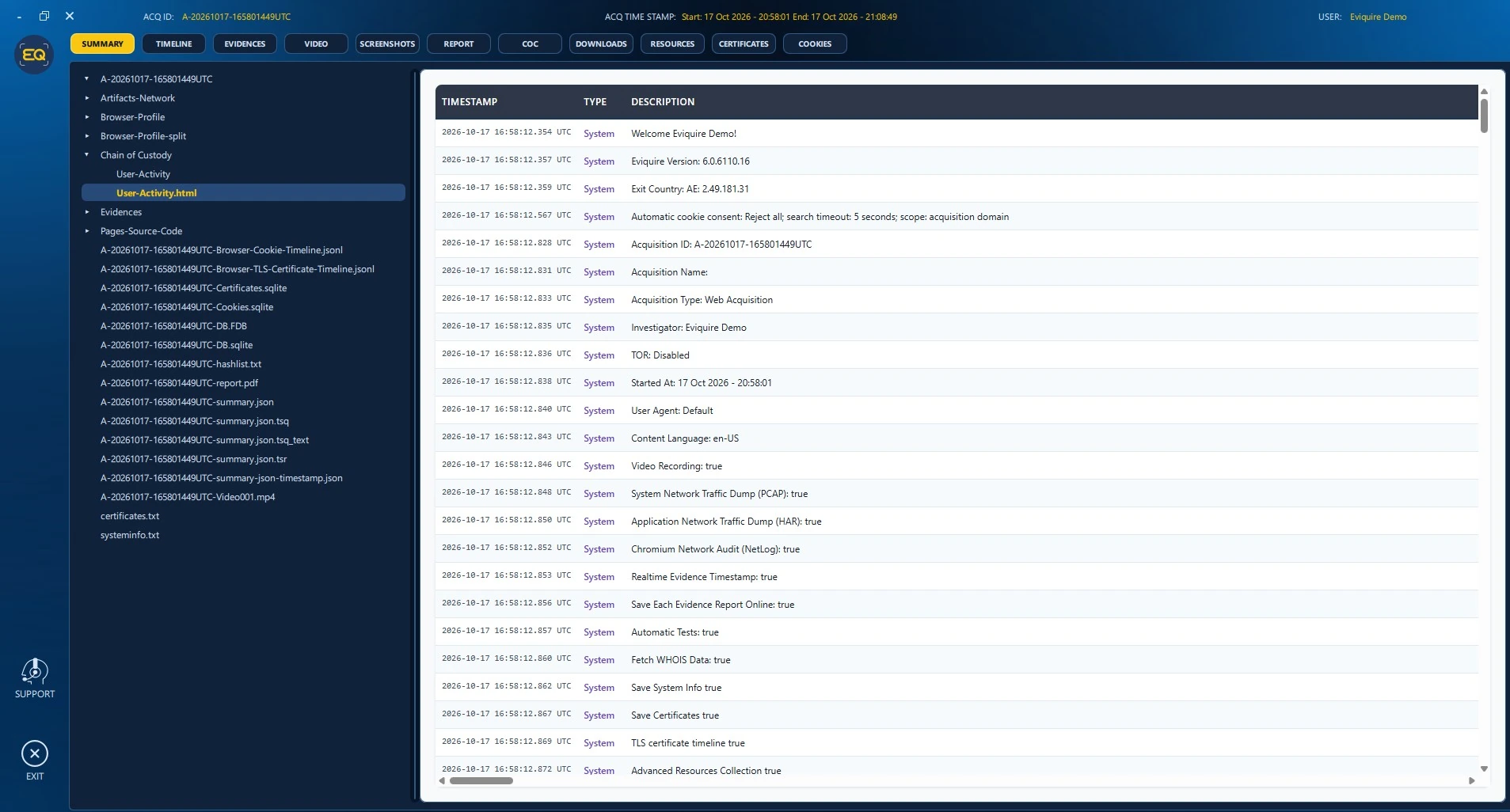
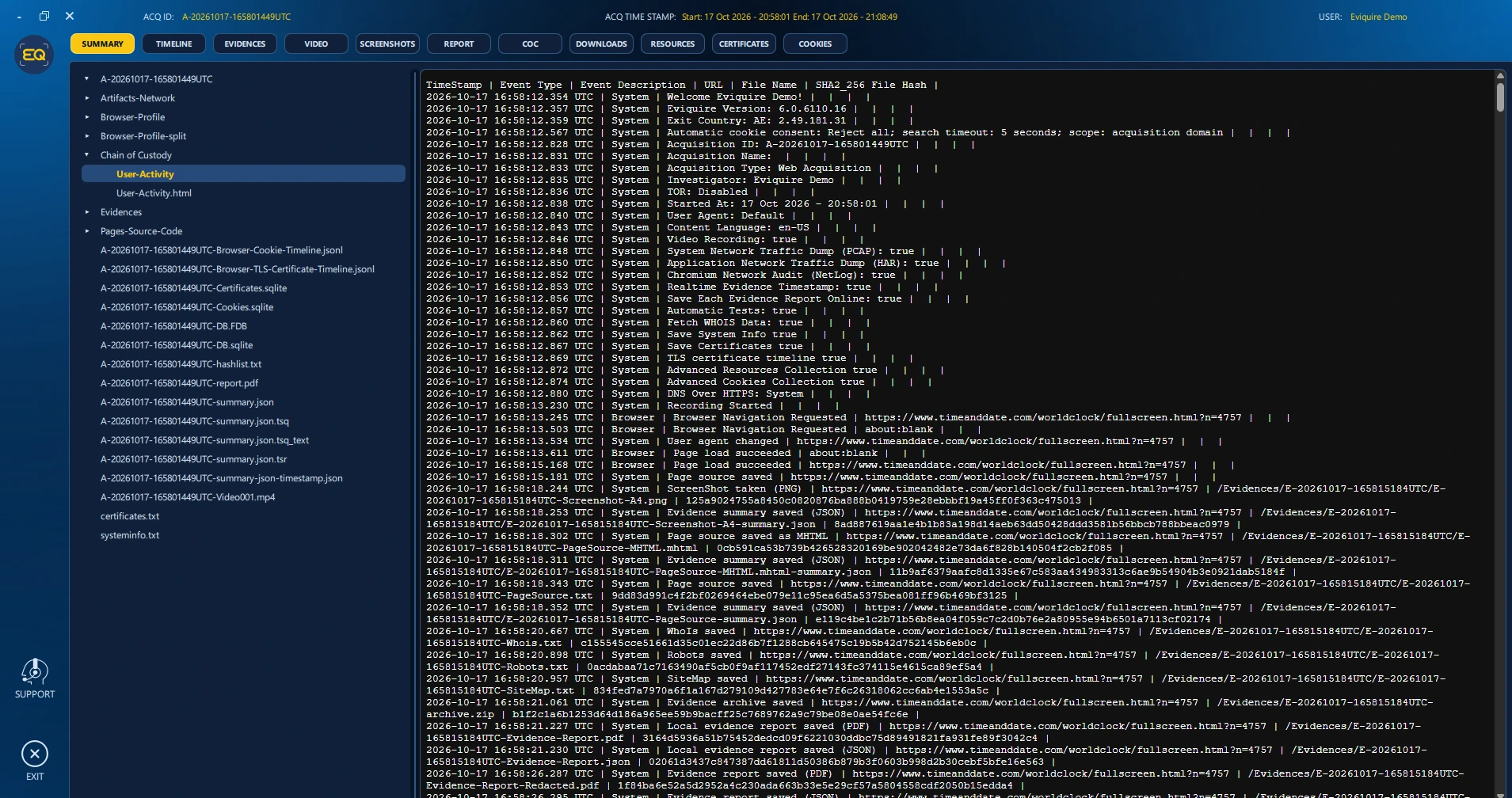
The Chain of Custody directory contains a human-readable HTML activity log and a plain-text User-Activity log. The HTML view presents labeled timestamp, event type and description columns; the text view is suited to independent parsing, search and forensic workflows. These are alternative renderings of custody data rather than separate acquisition sessions.
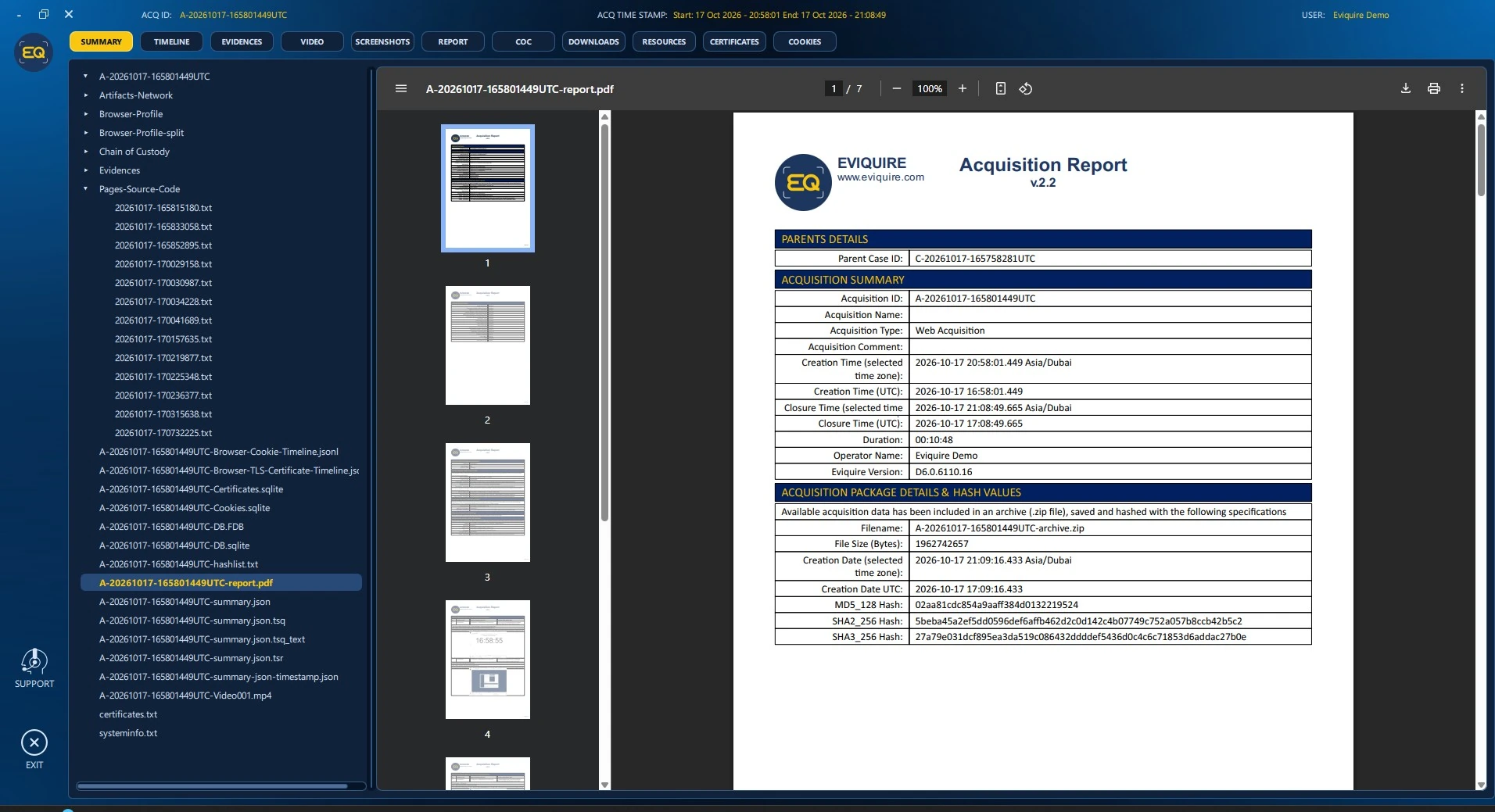
12.11.2 PDF Evidence and Acquisition Reports
Evidence packages may contain local evidence report PDFs as well as JSON, redacted report variants, summaries and timestamp receipts. Select a report PDF to use the integrated PDF viewer with page thumbnails, page navigation, zoom, save and print controls. The report identifies its case/acquisition lineage, evidence details, capture context and recorded integrity values.
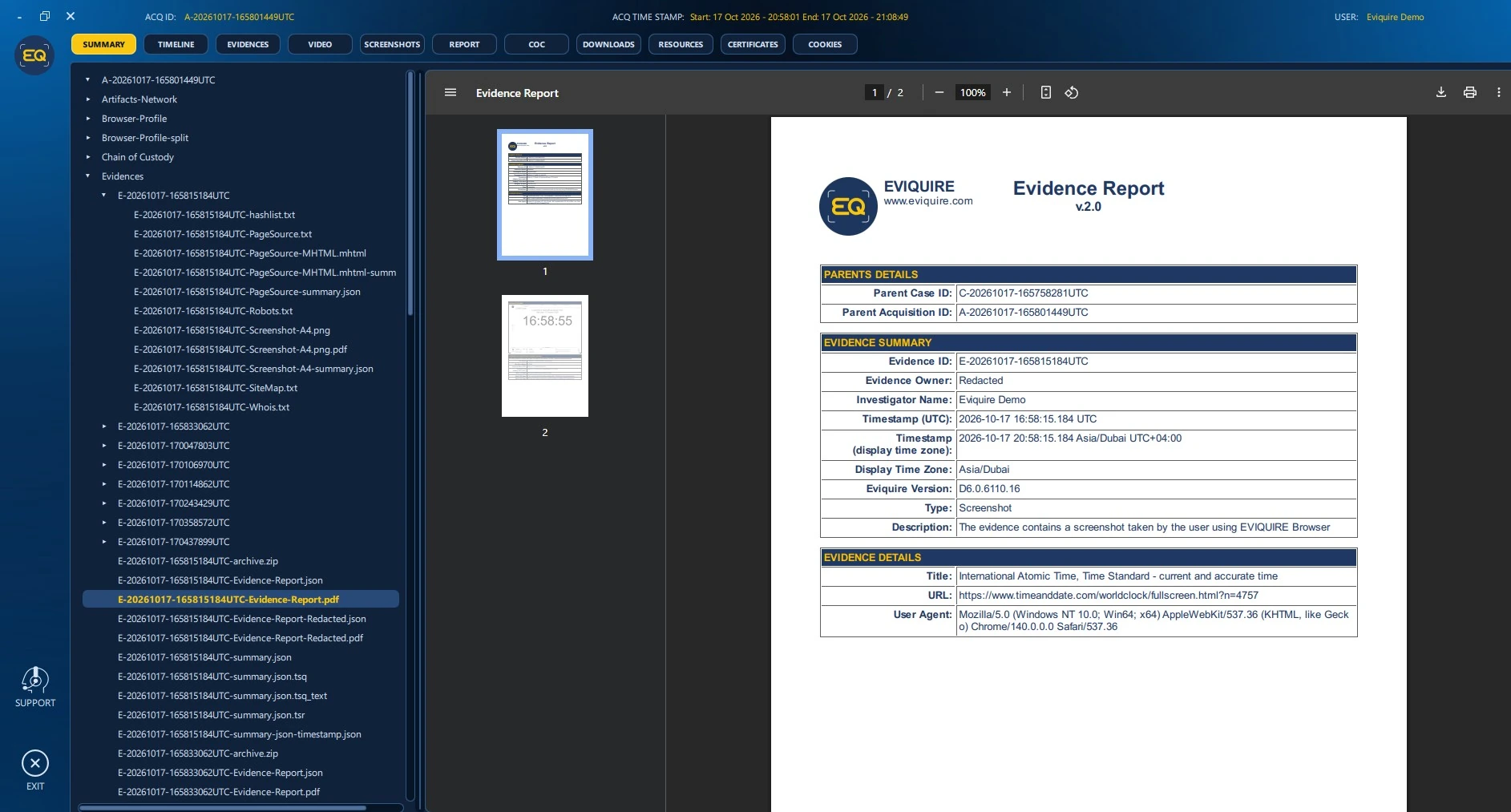
Acquisition-level reports can also be selected from the SUMMARY root, allowing the reviewer to verify session settings and the acquisition package information directly in the same workspace.
12.11.3 Page Source and Structured Metadata
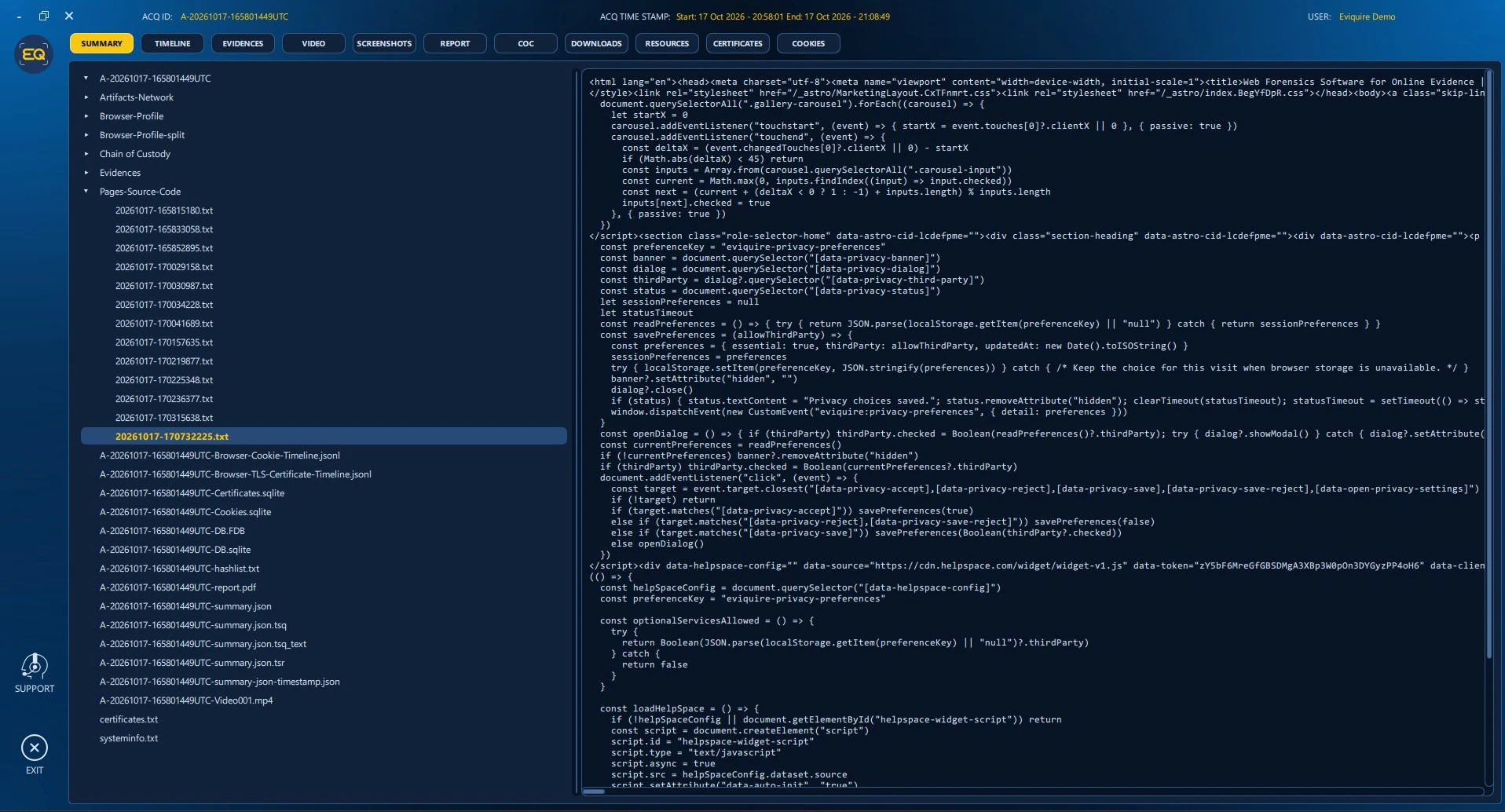
Text and MHTML source captures should be interpreted in the context of the corresponding captured page and timestamp. The browser rendering, raw source, DOM-related material and resource traces can differ because modern pages update after loading. In the viewer, source files are readable without changing the underlying archive.
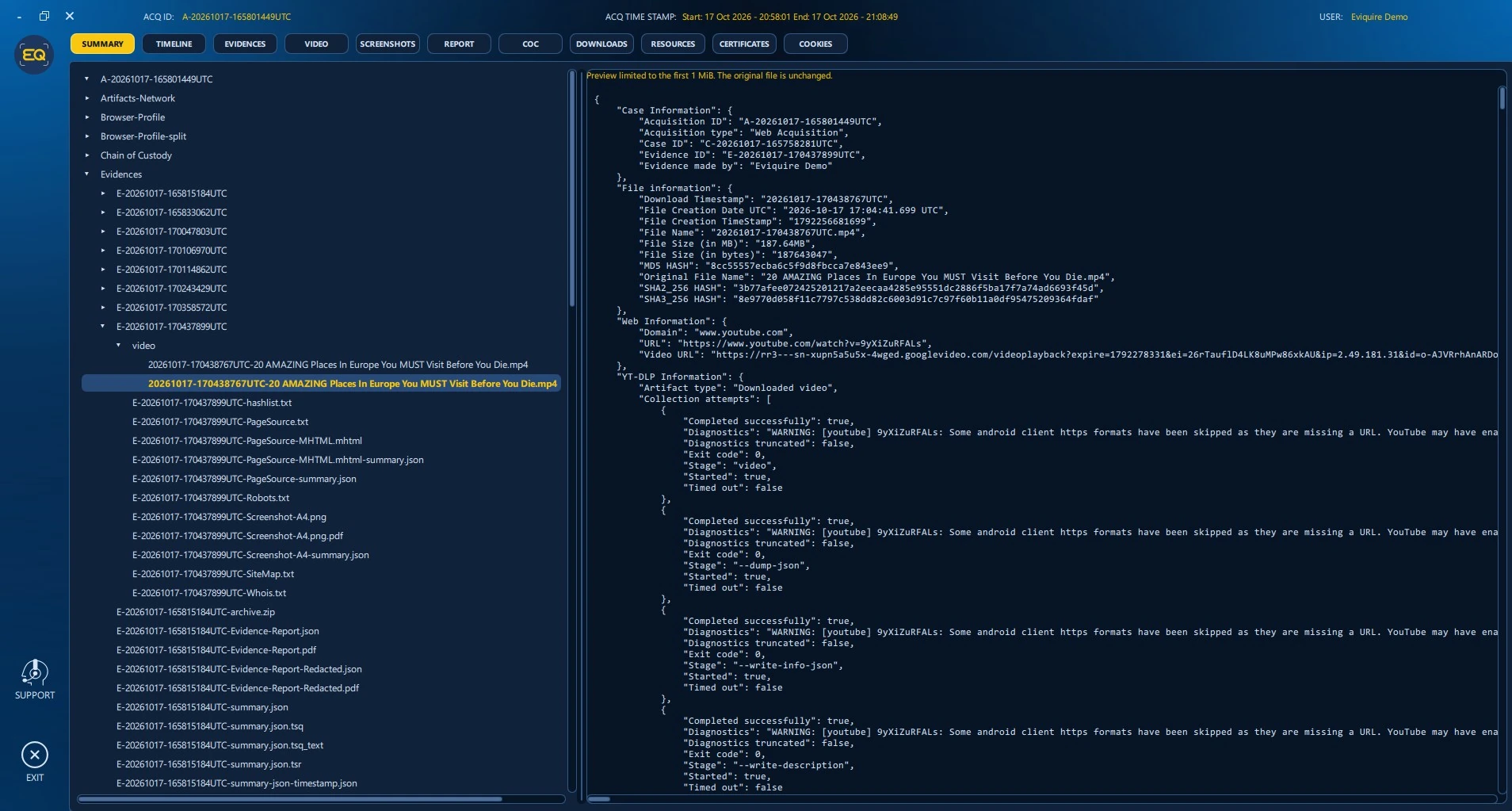
JSON files preserve structured technical details, including downloaded media summaries, identifiers, original filenames, URLs, timestamps, hash values and collection diagnostics where recorded. The preview can truncate large files for usability: the visible warning “Preview limited to the first 1 MiB. The original file is unchanged” refers only to the preview, not to acquisition truncation.
12.11.4 Hash Lists and File Inventories
An acquisition hash list provides a file-by-file integrity manifest, including stored paths, timestamps, sizes and recorded hashes. It helps explain which files belong to the acquisition and supports independent integrity validation. The screenshot shows acquisition-time hashes and related metadata; use the full file and verification tool for a definitive comparison.
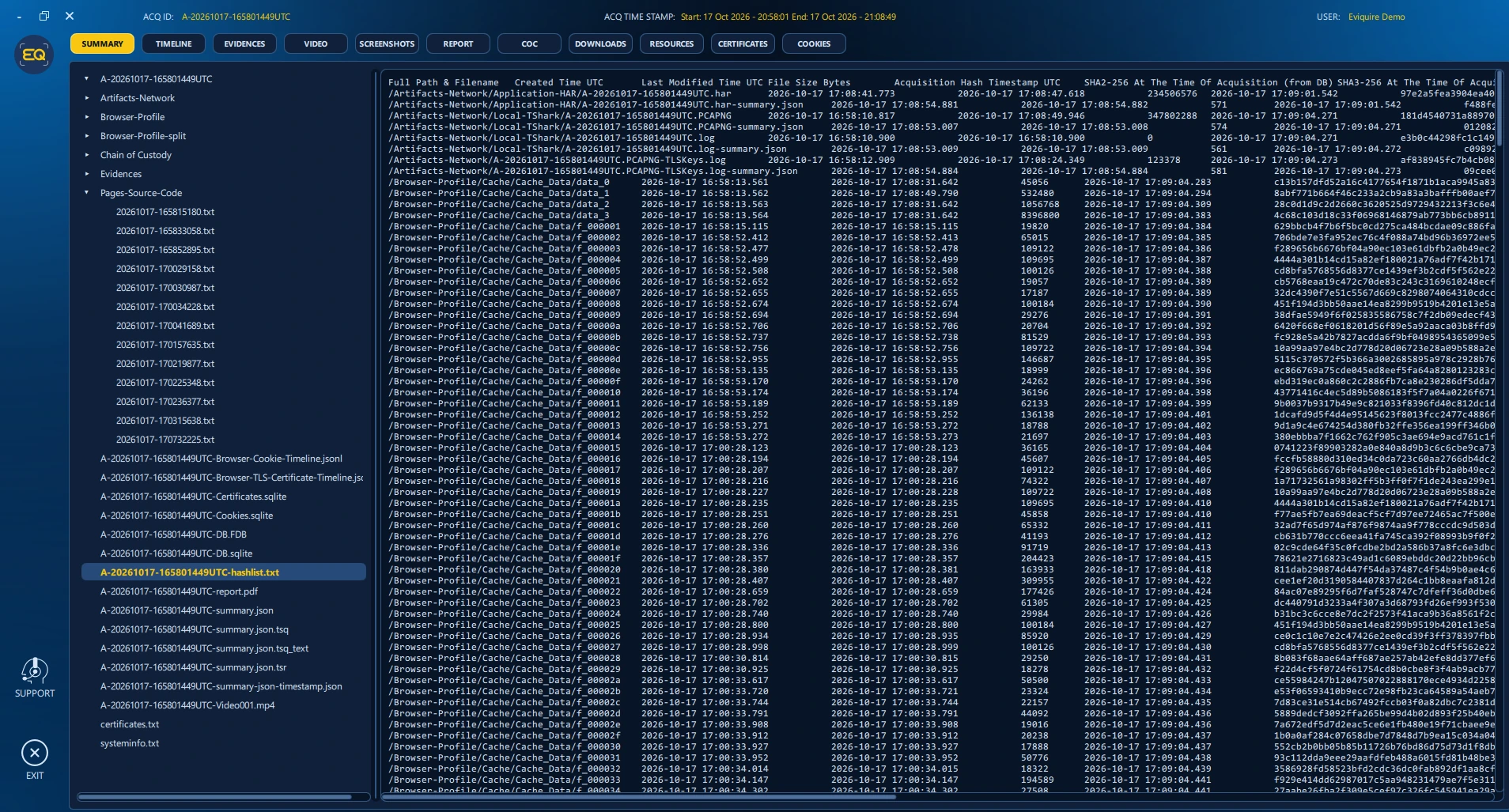
Important: The file viewer is not a substitute for integrity verification. Compare the original exported file against the corresponding recorded SHA2-256 and SHA3-256 values using an approved independent tool.
12.12 TIMELINE: Unified Chronological Review
TIMELINE places distinct acquisition events on a shared UTC-oriented axis. The controls shown include Cookies, TLS certificates, Evidence and Video. Event markers can represent groups of nearby events, and the timeline supports mouse-wheel zoom and drag-to-pan. A selected marker displays the event list; selecting an eligible individual event opens its details and linked technical context.
- Open TIMELINE and confirm the displayed acquisition time range.
- Use the category controls to focus on cookies, TLS certificates, evidence, or video activity.
- Zoom into a period of interest and pan to the desired capture interval.
- Select an event cluster, then a specific event, to inspect its observed UTC time, type and linked artifact.
- Correlate selected events with the COC log and original source records before drawing conclusions.
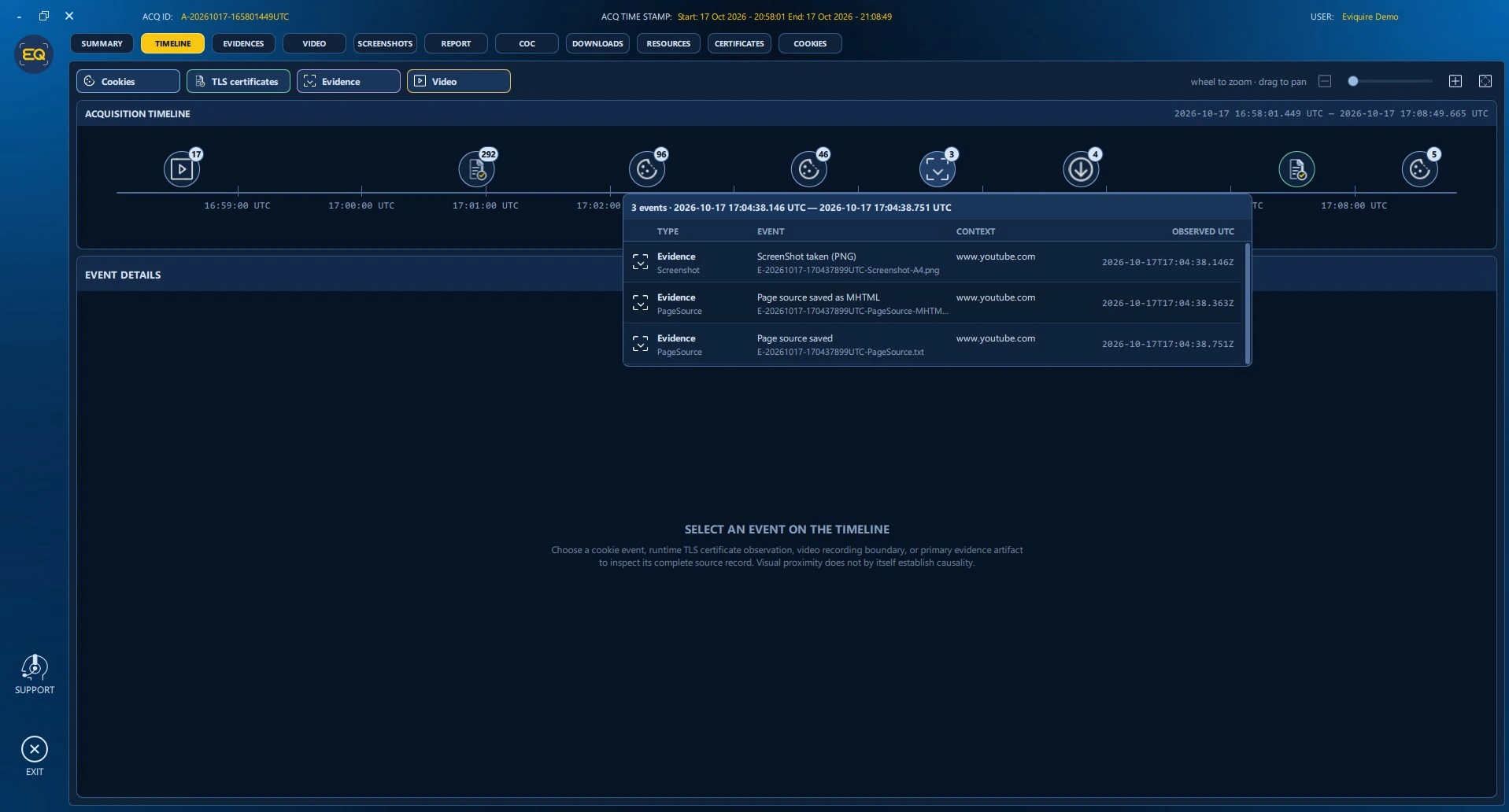
Nearby timeline markers establish temporal proximity only. For example, a TLS observation close to an evidence screenshot does not, by itself, prove the page originated from the certificate holder. Interpret sequence and causality using the full recorded context.
12.13 EVIDENCES: Individual Evidence Review
The EVIDENCES tab lists captured evidence records with their evidence IDs, timestamps, types and target domains. When a record is selected, the FILES panel displays its constituent files, types and sizes. Selecting a supported file produces a read-only preview and may expose zoom/fit or file download controls.
- Open EVIDENCES and select an evidence ID matching the item under review.
- Confirm its capture time, evidence type and recorded URL or domain.
- Review the FILES list; distinguish the raw archive, report, summary, source, screenshot and timestamp artifacts.
- Open the visual capture or report for interpretation, then validate required file hashes against the actual package.
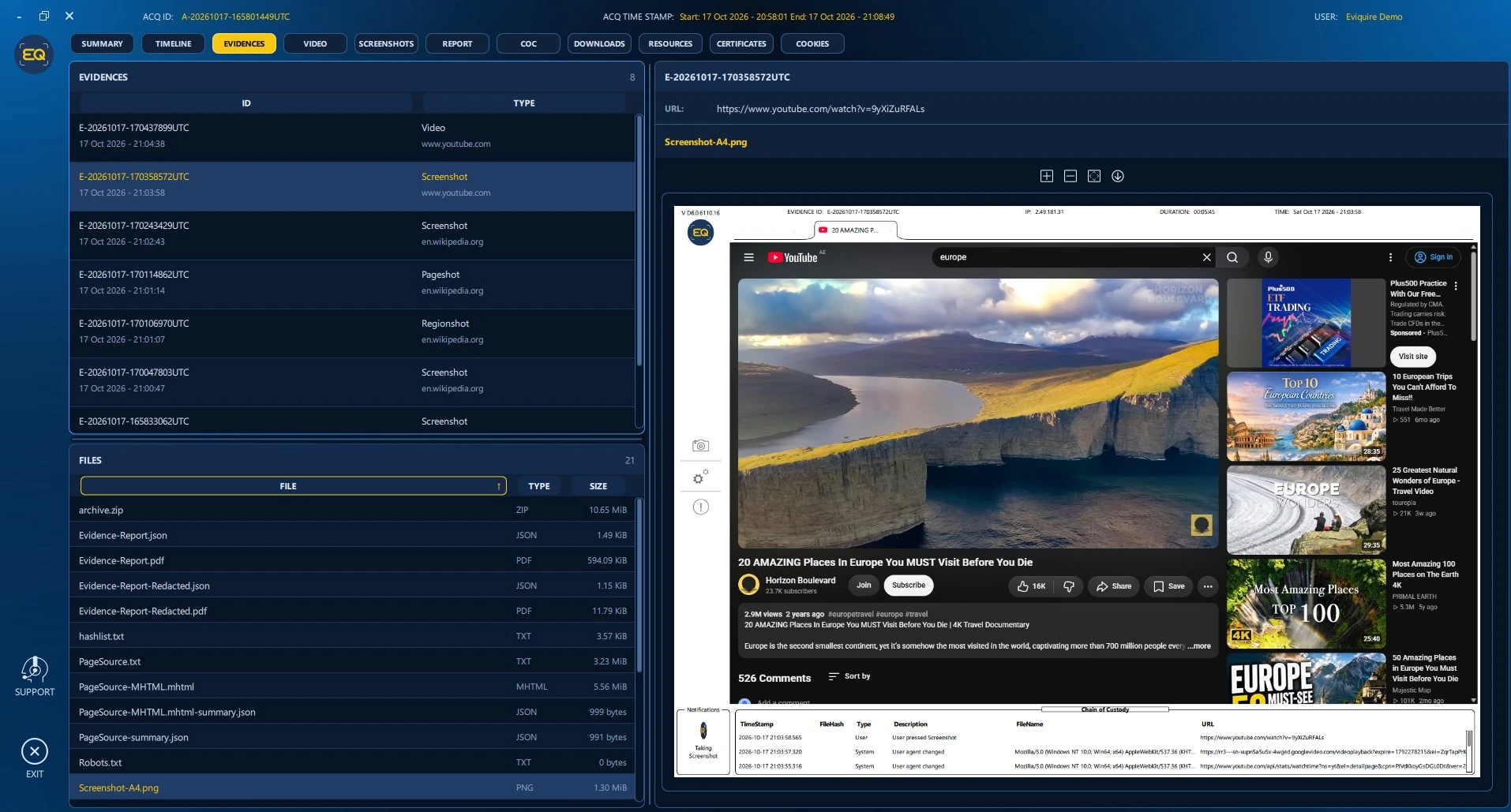
A single evidence item can include both visual and technical material, such as a screenshot and its source, WHOIS data, robots.txt, sitemap or summary JSON. A visual preview shows the recorded page state; it should not be mistaken for a live re-visit to the original website.
12.14 VIDEO: Session Recording
VIDEO displays the recorded acquisition session when Video Recording was enabled. Its playback controls allow pause/play, scrubbing through the recording, elapsed/total time inspection and volume adjustment. The recording may show Eviquire controls, visible user actions, page interactions and the acquisition Chain of Custody footer.
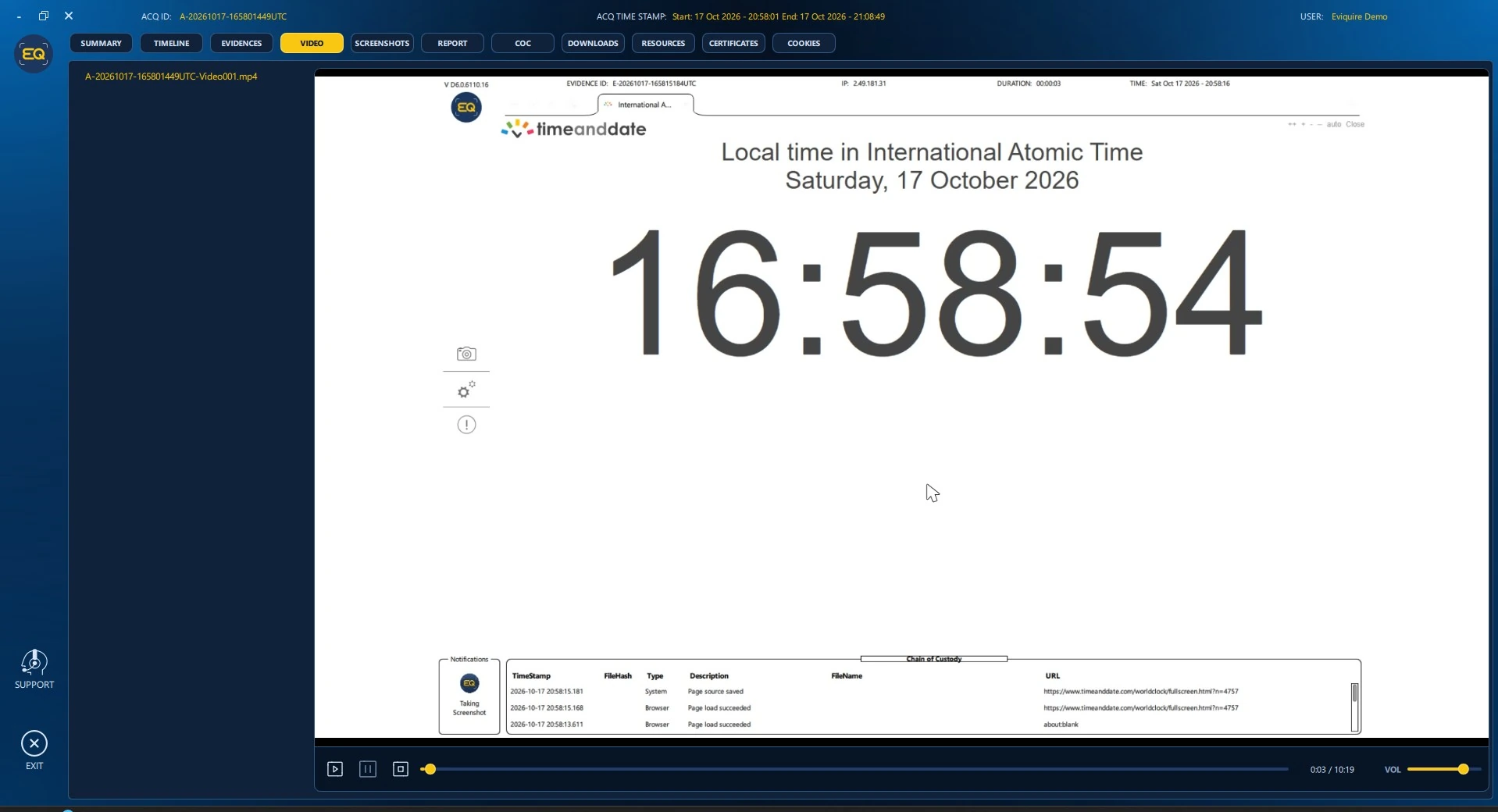
Session video is distinct from an externally downloaded website video. The session recording documents operator actions over time; downloaded media is a separately collected artifact with its own source information, filename and hashes. The viewer supports direct playback of supported AV1 and HEVC media without rewriting the original evidence file.
12.15 SCREENSHOTS: Visual Evidence Gallery
SCREENSHOTS lists still-image artifacts, including standard screenshots, region shots and the sequential PageShot frames that form a longer-page capture. Select an entry to display the image, then use the available controls to zoom, fit the image, or save the original file for controlled examination.
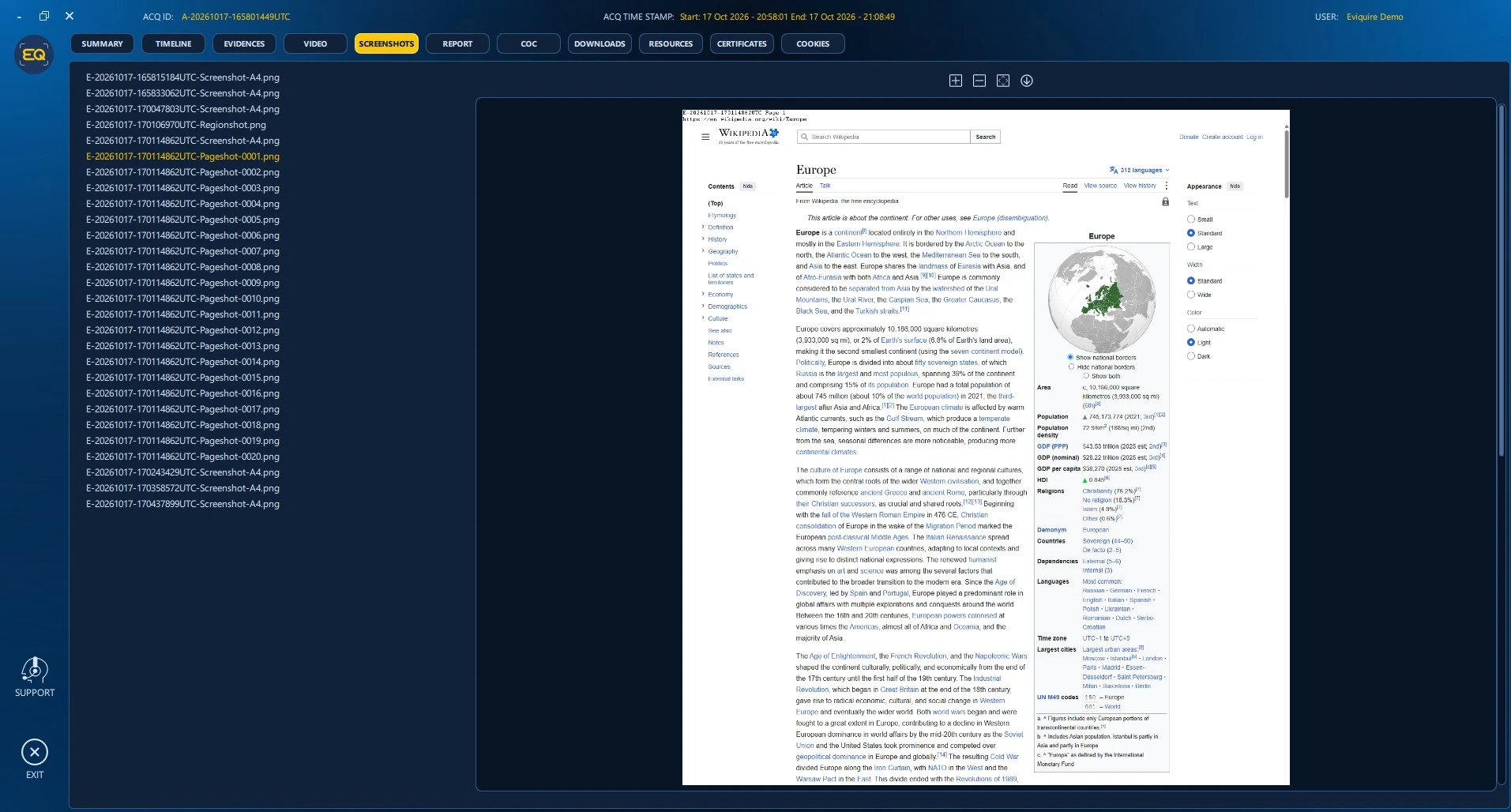
Sequential PageShot images document different positions of a longer web page; they are not necessarily interchangeable with the final compiled PDF. Verify that the sequence is complete when continuity matters, and document any browser content that changed during automatic scrolling.
12.16 REPORT: Acquisition-Level Documentation
REPORT opens the generated acquisition PDF report in the integrated viewer. Typical entries include the parent case ID, acquisition ID, operator, acquisition type, session times (with UTC and selected display time zone), software version, archive filename, package size and cryptographic hashes. Use the page navigator, zoom, save or print tools as needed.
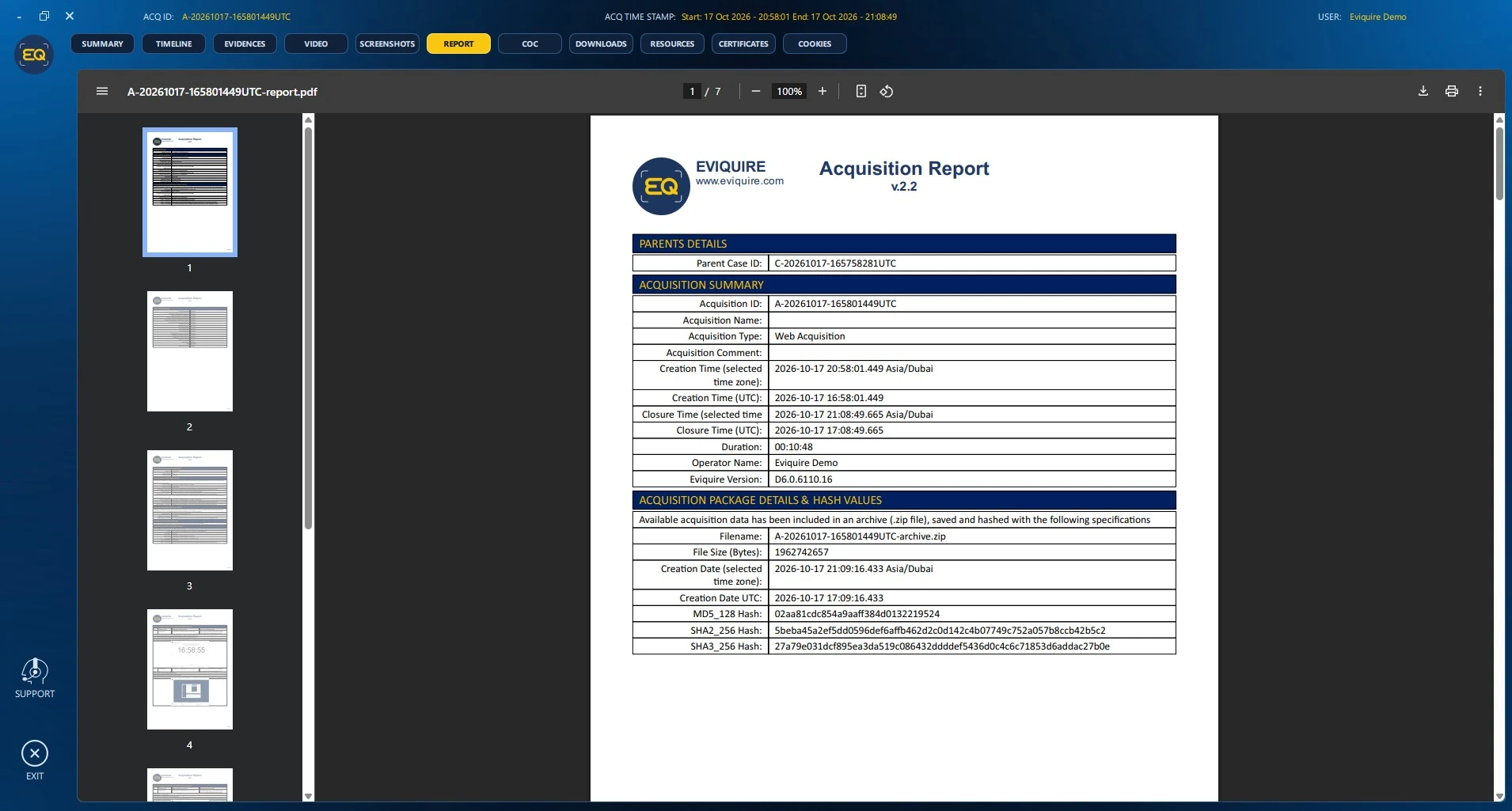
Evidence reports and acquisition reports serve different scopes. Use the evidence report to describe a particular capture; use the acquisition report to describe the full session and technical conditions under which evidence was acquired. Preserve both the PDF and its structured JSON and summary records when exporting.
12.17 COC: Chain of Custody
COC presents a structured activity record with UTC timestamp, event type, description and file information. It includes session initialization and selected options, navigation, evidence creation, file saves, downloads, timestamp operations, recording and closure events. The displayed log is valuable for reconstructing what the software observed and what the operator did.
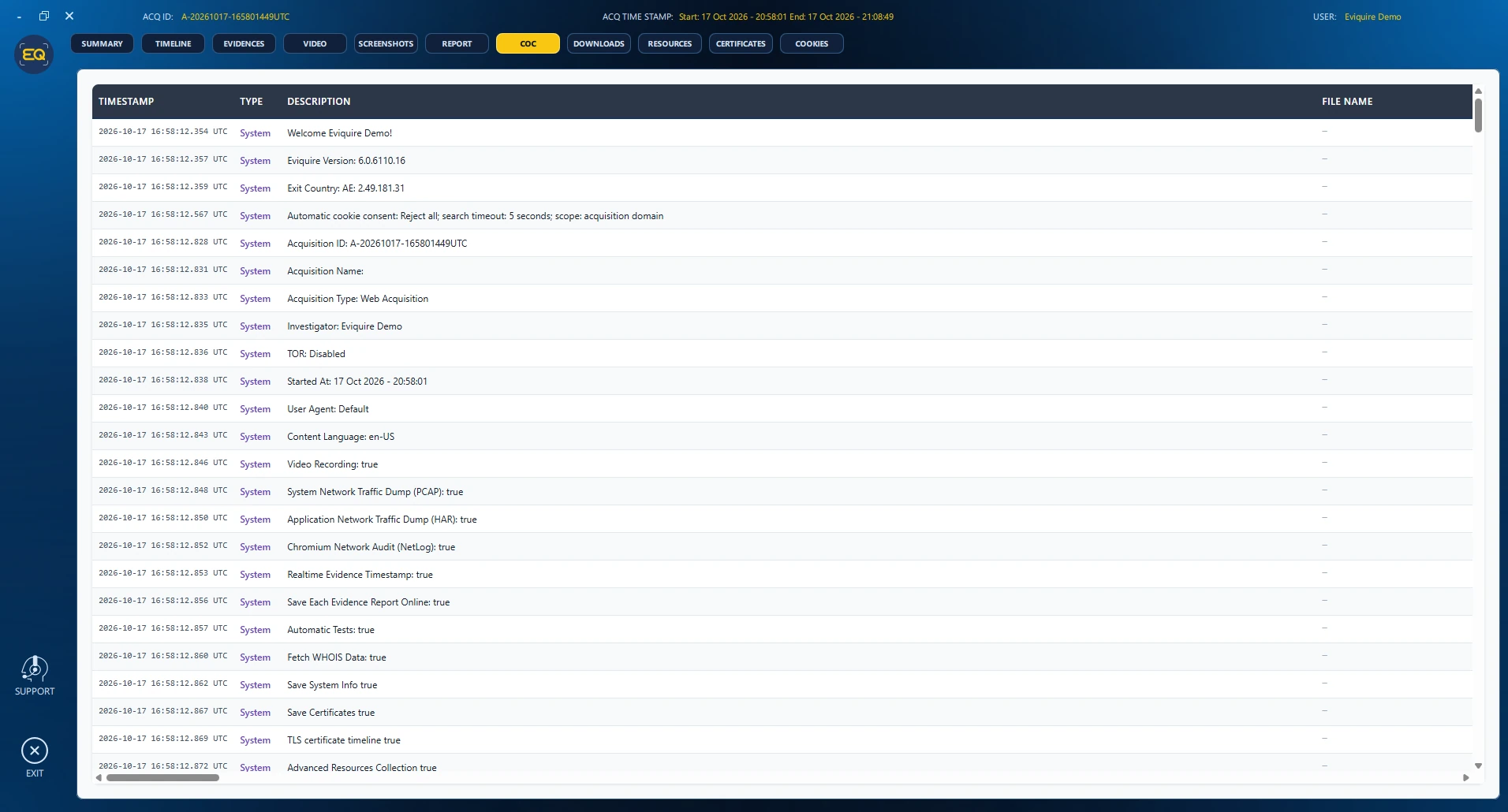
Where a file-hash field is populated, correlate it with the exact file described by that event. Use the original User-Activity file and summary/hash manifests for machine-readable or formal validation. A custody log records actions and handling; it does not independently prove that statements displayed on a website are true.
12.18 DOWNLOADS: Downloaded Media and Companion Metadata
DOWNLOADS focuses on downloaded files. In the illustrated example, a downloaded website video appears in the file list, with a media player above a structured JSON metadata panel. Metadata may include the source URL, original media filename, download time, size, hash values, collection status and available titles/descriptions or diagnostic messages.
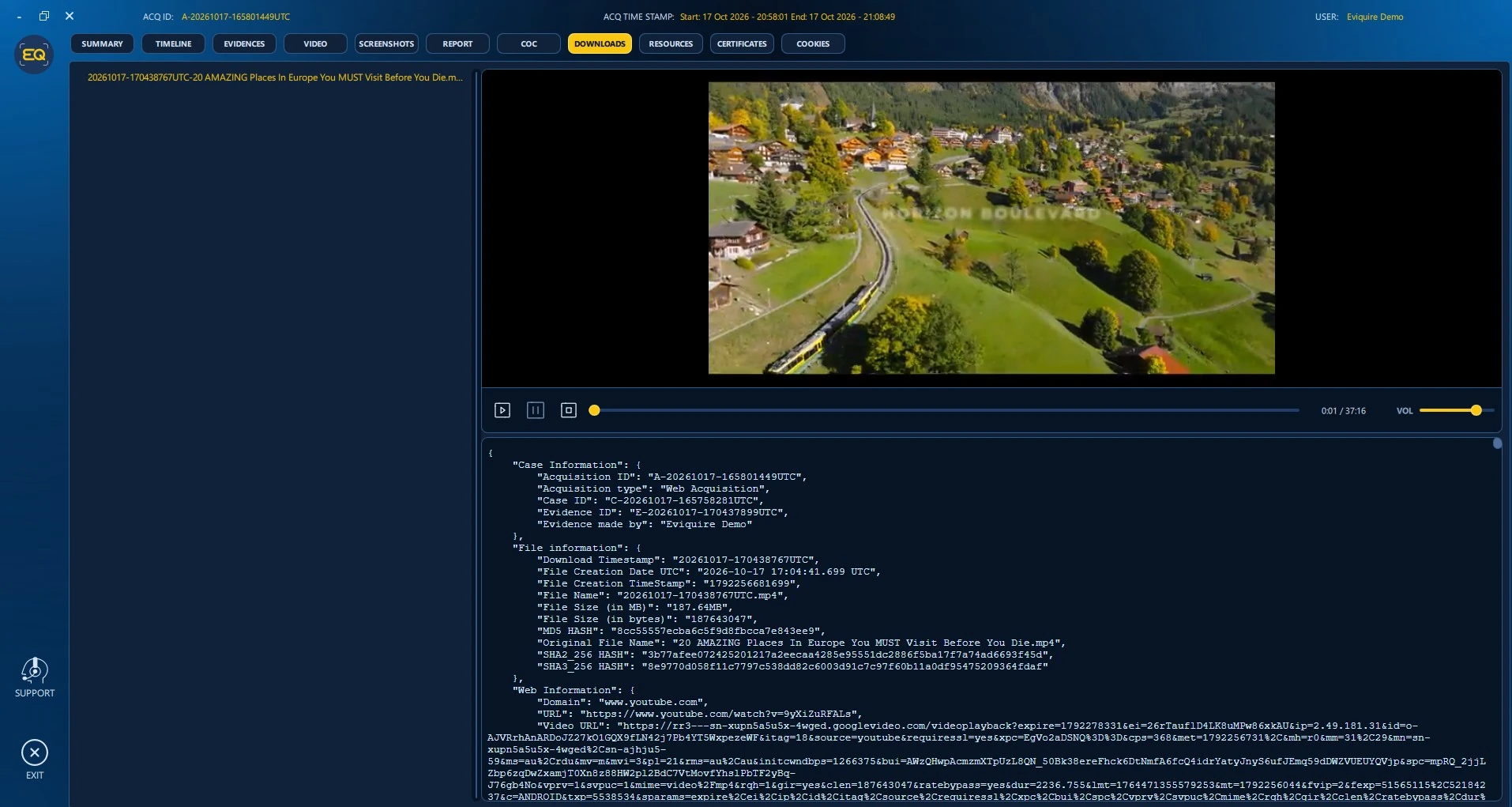
The same downloaded video and its JSON companion may also be inspected from the evidence folder in SUMMARY. Confirm that the media being reviewed belongs to the selected evidence item and distinguish any download warnings from successful collection results.
12.19 RESOURCES: Network Requests, Responses and HAR
RESOURCES shows browser-observed network-resource records. The illustrated controls include RR and HAR views, a search box, and a sortable transaction table with Timestamp, Status, Method, URL, Type, Size, Time and Waterfall. Selecting a record reveals available REQUEST, RESPONSE and TIMINGS panels and an optional raw-response download control.
- Open RESOURCES and choose HAR when reviewing application-level HTTP capture.
- Use search or the table headers to locate the relevant request by URL, status, type or time.
- Select an entry and inspect its request headers, response data and timing waterfall.
- Save the supported raw response if needed, then verify the corresponding original HAR or acquired resource record.
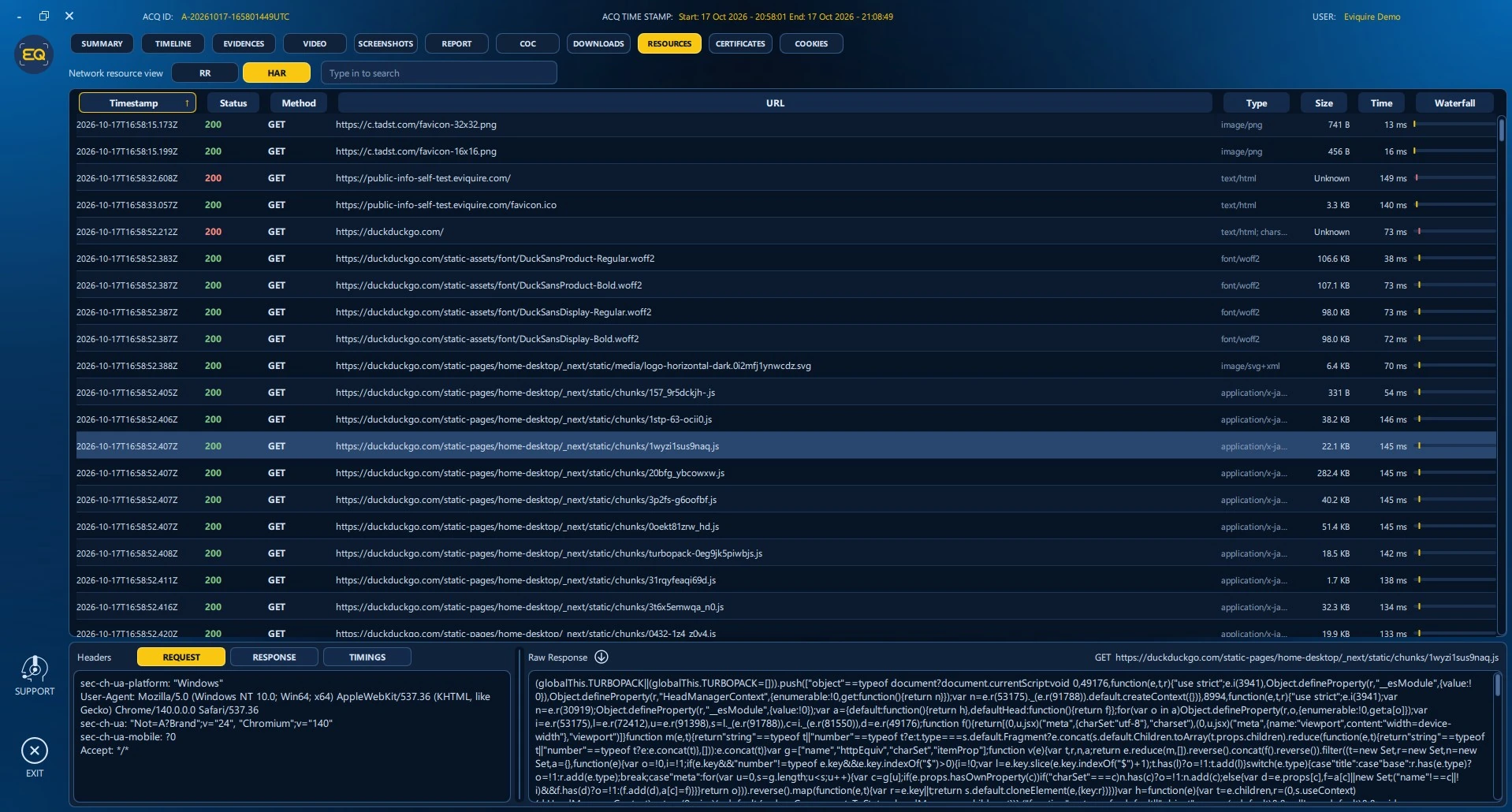
The HAR view concerns browser-observed application traffic, not all packets on the workstation. Packet-level PCAPNG collection, Chromium NetLog diagnostics and TLS key logs are different artifacts with different scope and privacy implications. HAR and raw responses may expose cookies, authorization headers or sensitive page content.
12.20 CERTIFICATES: Observed TLS Connection Evidence
CERTIFICATES displays browser-observed TLS certificate and connection records. The viewer includes a text search and Host, Event and Profile selectors. Its record list identifies observed hosts and timestamps, including initial and later observations. The detail view exposes observed UTC, negotiated protocol, connection outcome, certificate and chain information, fingerprints, validity information and other recorded TLS properties.
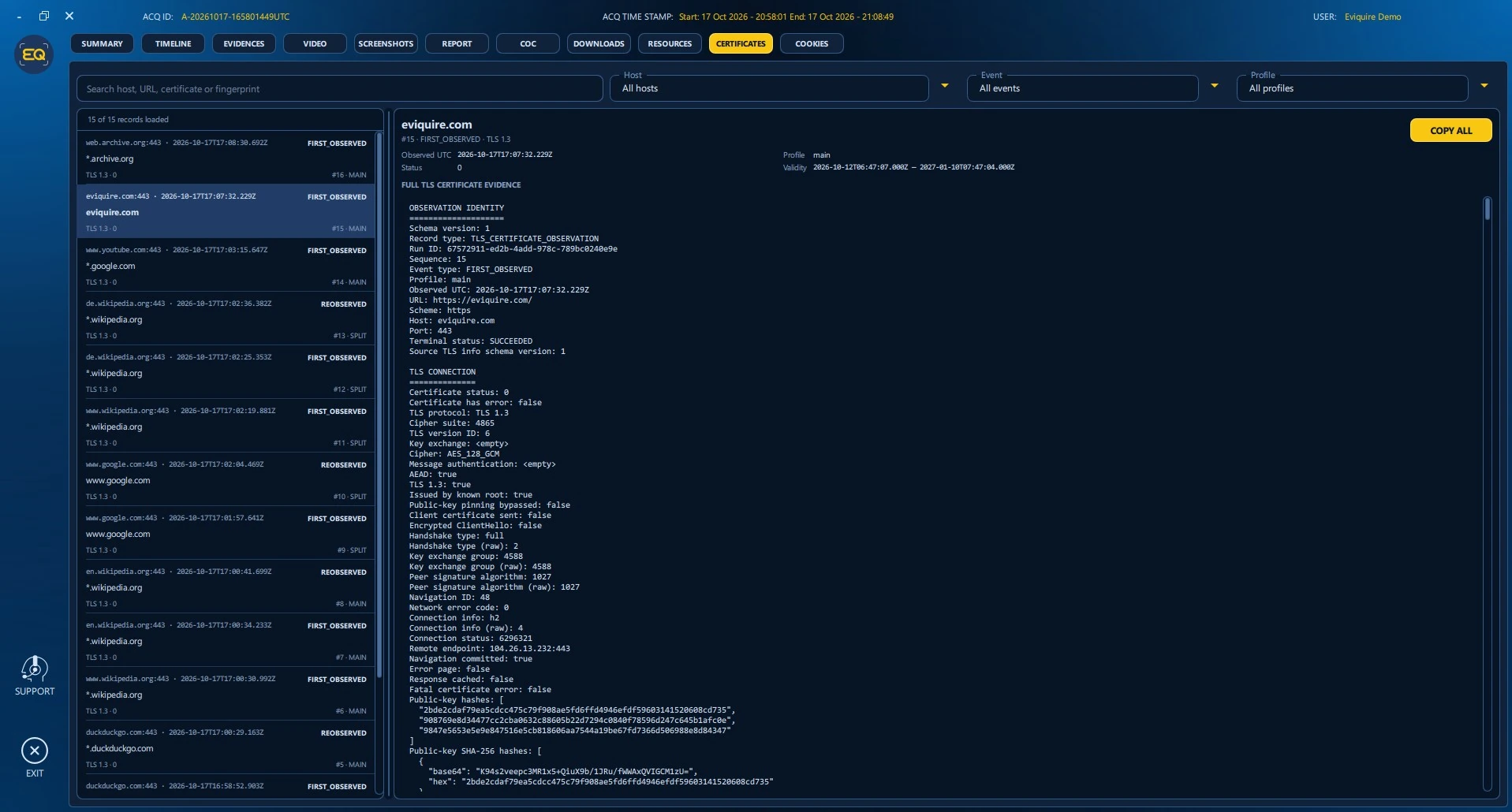
The COPY ALL action copies the displayed technical record for analysis. Use the observed time, host, SNI or URL and certificate context together. A certificate record proves what the browser observed during a connection; it does not itself establish the reliability or truth of webpage content.
12.21 COOKIES: Browser Cookie Evidence
When Advanced Cookies Collection was enabled for the acquisition, the COOKIES review tab provides access to preserved cookie information and lifecycle events. Records can be examined in connection with domain context and the acquisition timeline. Automatic Cookie Consent configuration and consent-click events, if present, should be compared with the COC to distinguish automatic browser behavior from operator interaction.
- Open COOKIES for an acquisition that used detailed cookie collection.
- Locate the target domain and relevant cookie entries or lifecycle events.
- Compare observation timestamps with the TIMELINE and COC tabs.
- Document any cookie values or session identifiers separately under the investigation’s privacy and access controls.
Sensitive information: Cookie stores and HTTP resources may contain active session tokens or account information. Handle their exports under the same controls as other sensitive evidence.
12.22 Cross-Checking Integrity and Provenance
Acquisition review is strongest when the displayed records agree across independent views. The SUMMARY tree identifies the actual artifact; EVIDENCES links it to a capture ID; COC documents actions at recorded times; TIMELINE provides chronological context; REPORT summarizes the session; and the package summary/hash list provides file-integrity data. Where timestamping or blockchain anchoring was enabled, verify receipts against the submitted summary hash rather than assuming that a transaction reference verifies every underlying file independently.
For a downloaded media file, for example, inspect its evidence record, original filename, video playback, source URL and JSON summary, and then independently compute its digest on a copy. For a screenshot, compare the captured image with its evidence report and underlying source/context, check COC timestamps and file paths, and verify its reported SHA2-256 value.
12.23 Recommended End-to-End Acquisition Review
- Identify the correct case, acquisition ID, investigator and session dates in Case Manager and the review header.
- Open SUMMARY and inspect the top-level artifact inventory; confirm which HAR, PCAPNG, browser-profile, custody and report files actually exist.
- Open REPORT to establish the recorded acquisition configuration and package identifiers.
- Open COC to reconstruct the operator and system events, including any errors, retries or warnings.
- Use TIMELINE to correlate visual captures, downloads, video, certificate and cookie events at relevant UTC times.
- Use EVIDENCES, SCREENSHOTS and VIDEO to evaluate the content of the selected evidence items.
- Use DOWNLOADS, RESOURCES, CERTIFICATES and COOKIES when those artifacts are relevant to the investigative question.
- Examine each selected file’s associated summary, recorded digest and package lineage; carry out independent integrity verification on review copies.
- Preserve the original acquisition archive, record findings and export only the permitted scope through an approved process.
Display times: The example screens show a Dubai display time zone (UTC+04:00) while the COC activity rows use UTC. State which time basis is used in any report, timeline exhibit or witness explanation.